Demo: Extract data from a clinical note
Walk through the entire extraction process with a sample document.
About this demo
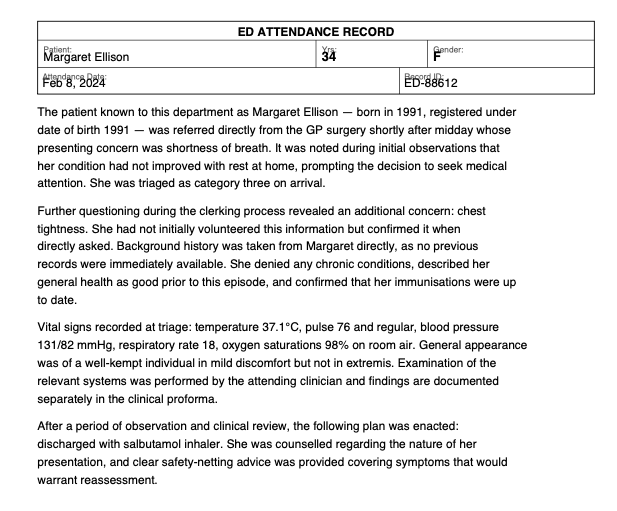
We'll extract structured data from a synthetic emergency department clinical note.
The document is a one-page PDF containing a patient's name, age, complaints, and visit outcome written in clinical prose.
You'll walk through each step: uploading, choosing a mode, picking tools, defining a schema, and extracting. Each step includes an explanation of why we're making each choice.
You'll walk through each step: uploading, choosing a mode, picking tools, defining a schema, and extracting. Each step includes an explanation of why we're making each choice.
This document was generated entirely by AI for demonstration purposes. It does not represent a real patient, provider, or medical event. Any resemblance to real persons or events is coincidental.
This demo uses pre-computed results to show you the full workflow without needing an API key. To run real extractions, add an API key in Settings.
Sample from the document (click to expand)
Upload your files
Drop one file, many files, or a whole folder.
Demo walkthrough
We've loaded the demo document for you. In a real workflow, you'd drop your own PDFs here. You can also set a page range below if you only need specific pages from a larger document.
Only process specific pages from a single document. Leave blank to process all pages.
or
What kind of extraction?
How is your data structured?
Demo walkthrough
This clinical note contains one set of data points per document — a single patient's info. There's no table or list of rows to extract. That makes this a Query — we want one row of results per file. If we had a batch of 100 notes, we'd get 100 rows.
Query
Pull specific data points from each document. One row of results per file.
Table
Extract rows from a table. Multiple rows per file.
Text
Just get the text -- no schema needed.
Choose a parser
The parser reads text from your PDF.
Demo walkthrough
The parser reads text from the PDF. PyMuPDF is fast and free for most digital documents. For scanned or handwritten documents, use Datalab instead.
PyMuPDF
Fast, local text extraction. Works for most text-based PDFs.
Datalab
AI-powered OCR for scanned docs, handwriting, or complex layouts. Requires Datalab API key.
Unstructured
Alternative AI parser. Requires Unstructured API key.
Need to set API keys? Settings
Choose a model
The model reads the parsed text and extracts your data.
Demo walkthrough
The model does the actual extraction. GPT-4.1 Mini is the best default — cheap, fast, and accurate on most documents.
GPT-4.1 Mini
Best balance of cost and accuracy. Handles most documents well.
GPT-4.1 Nano
Cheapest option. Good for simple, well-structured documents.
GPT-4.1
Most capable OpenAI model. Use for complex or ambiguous documents.
Anthropic models (Claude Sonnet, Claude Haiku) are also available.
Need to set API keys? Settings
Define your schema
Add the data points you want to extract from each document.
Demo walkthrough
The schema tells Petey what to look for. Each field is a data point you want extracted. A few things to notice:
Gender is a Category field — we give it a fixed set of values (Male, Female, Non-binary) so the model picks from a controlled list instead of making up its own labels.
Descriptions matter. For gender, we say "infer from pronouns if not obvious" — this guides the model when the document doesn't state gender explicitly. For the second complaint, we note it "can be null" so the model knows it's OK to leave it blank.
You can also click Suggest fields to have Petey analyze the document and propose a schema automatically.
Fields
Extracting...
Working on your files.
Demo walkthrough
That's it! Petey parsed the PDF, sent the text to the model with your schema, and returned structured data. You can download the results as CSV or JSON, and download the schema to reuse it on the main Extractor page with a whole batch of files.